Setup
The following step will have to exectuted once, from a user with Admin credentials.
Storage Scenario
Once the plugin is installed and available, the first step is to configure the storage scenario
ftrack Connect should be running in order to configure the storage scenario`
Setup the storage scenario
head over Settings -> Storage Scenario, click Configure Storage Scenario and select Perforce storage scenario
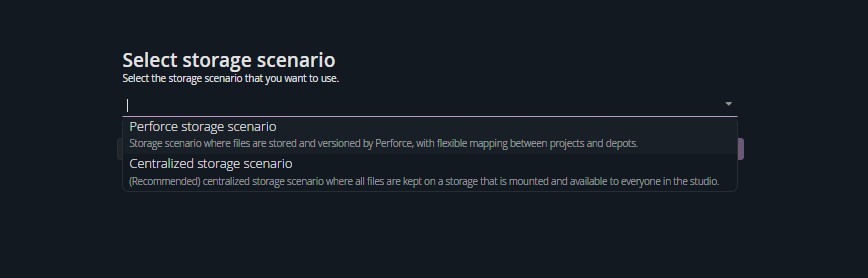
click Next to setup the required fields
Perforce name or address: This should point to either your DNS or IP address of the Perforce instance.Perforce Server port number: This should point to the port used by the perforce server (default: 1666).Perforce connection uses SSL: Set this accordingly to your Perfoce deployment.
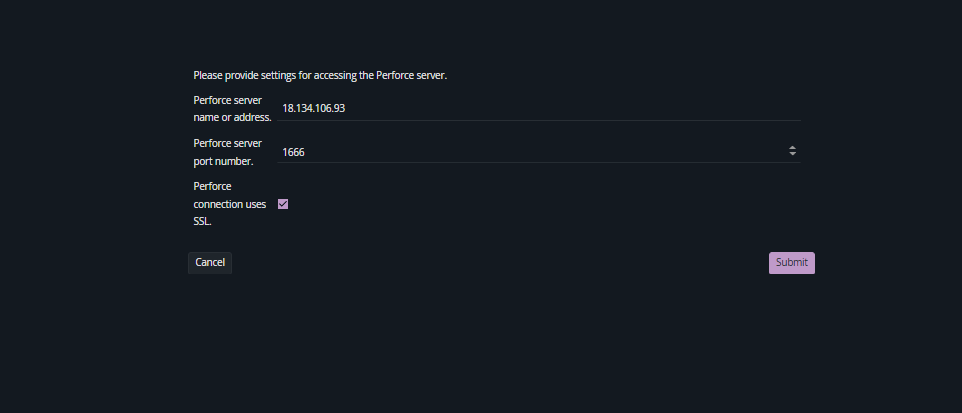
Once done, restart ftrack Connect to pick up the changes.
Perforce Setup
This is has to be performed by a perforce user with Admin rights
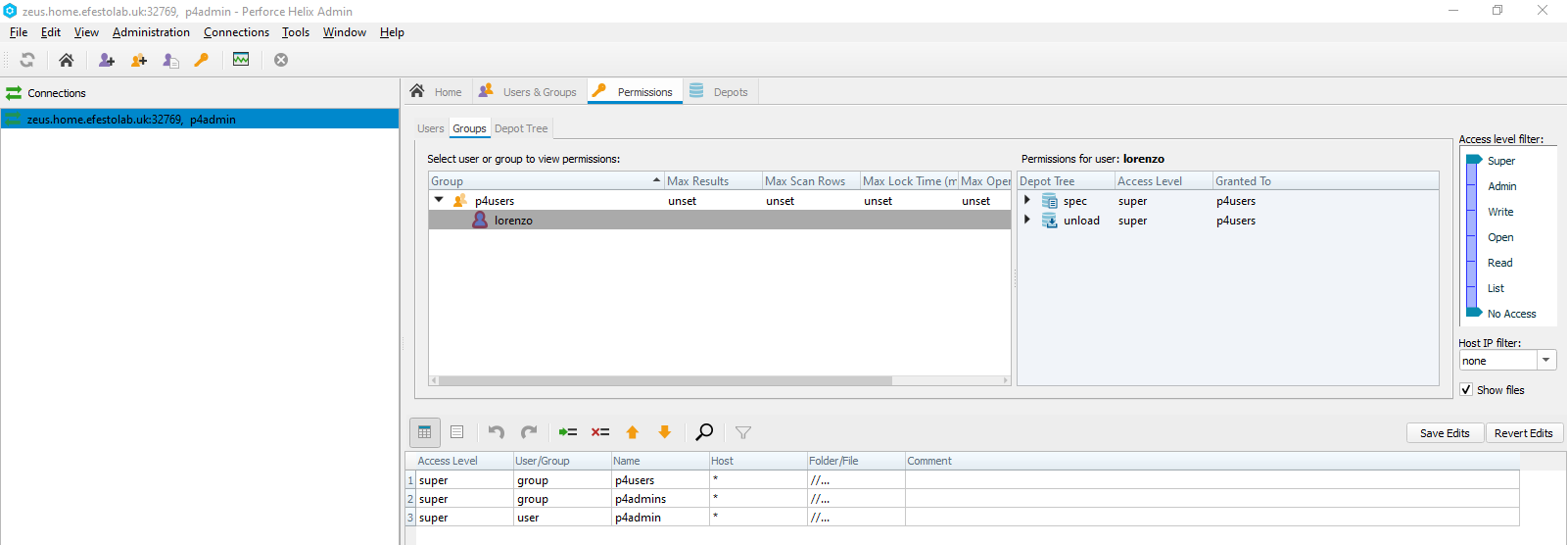
- In p4admin : Create users with name as the same login name as ftrack
- In p4admin : Ensure users are part of the p4users group as Members and Owners
Workspace and local folder
Local folder
Create a workspace folder on your local disk as a location to save and store files
For example:
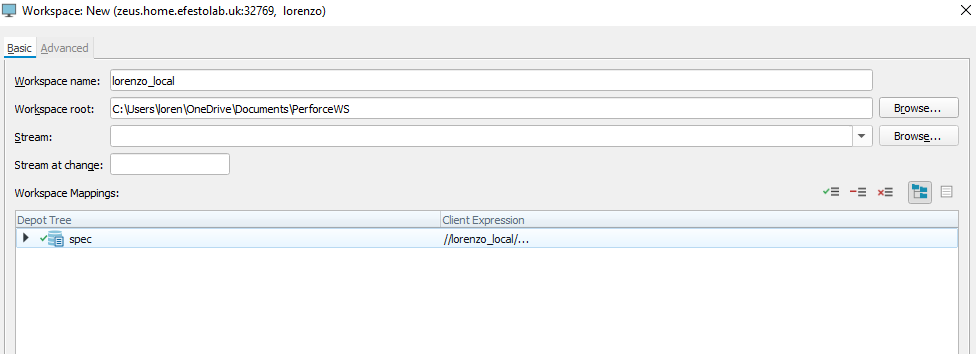
C:\Users\$USER\Documents\PerforceWS
Workspace
Create workspace
In p4v: login with your current ftrack username and perforce password. Create a new workspace
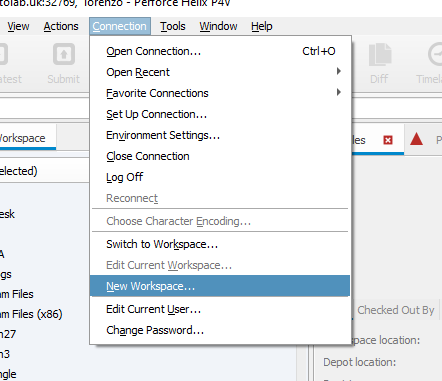
Set workspace
Set the workspace path to the folder created in step 1 of this process:
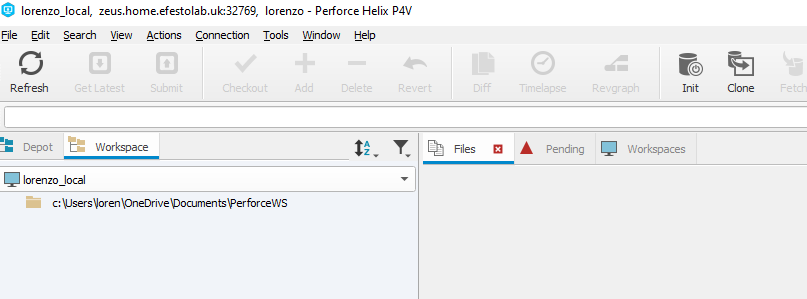
Once complete, p4v should look like this:
Integration
Setup user workspace and credentials
- Download or build the latest integration.
- Install the integration as ftrack plugin
- Start connect.
If the plugin is properly installed you should see the Perforce Settings tab.
Select the workspace you wish to use and click save settings.
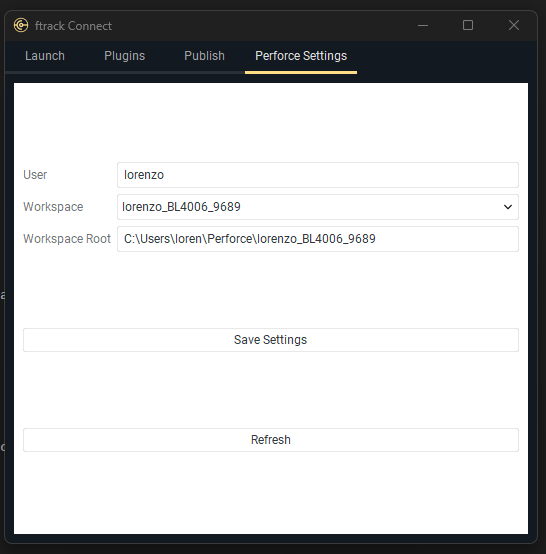
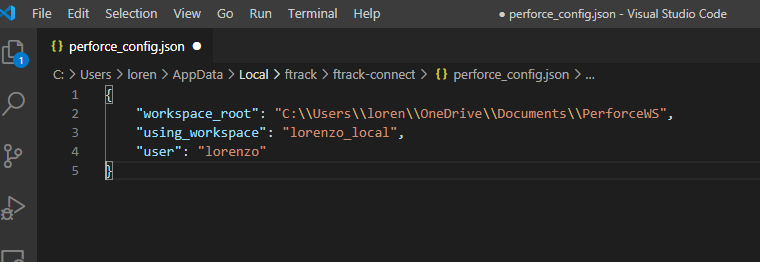
This will write a configuration file into the ftrack-connect data folder, which will contain your chosen settings:
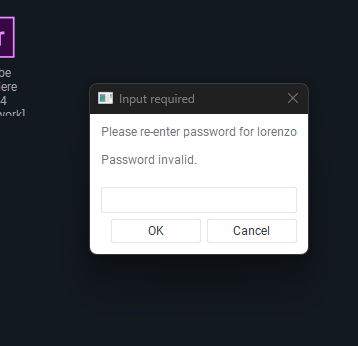
A login window will display and ask for a username and password, if you have not logged into Perforce for a while.
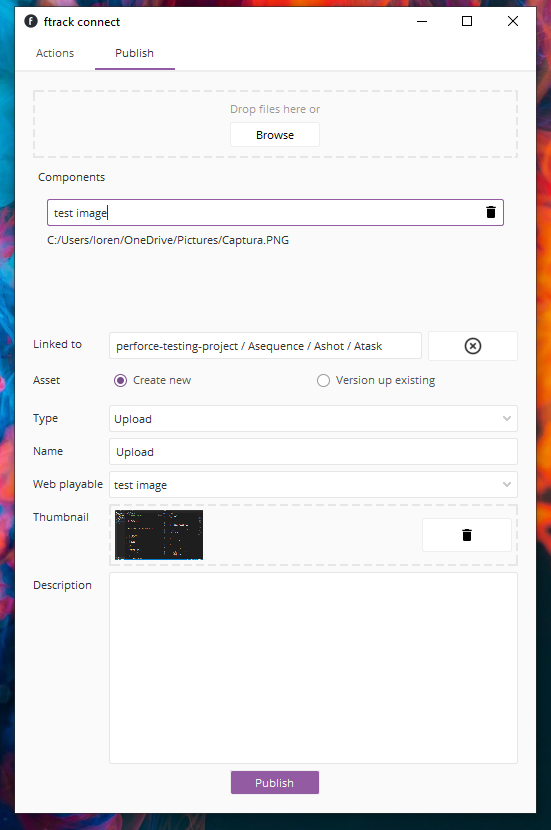
Publishing
You should now be able to publish to perforce using connect as usual using connect or any other ftrack integration.
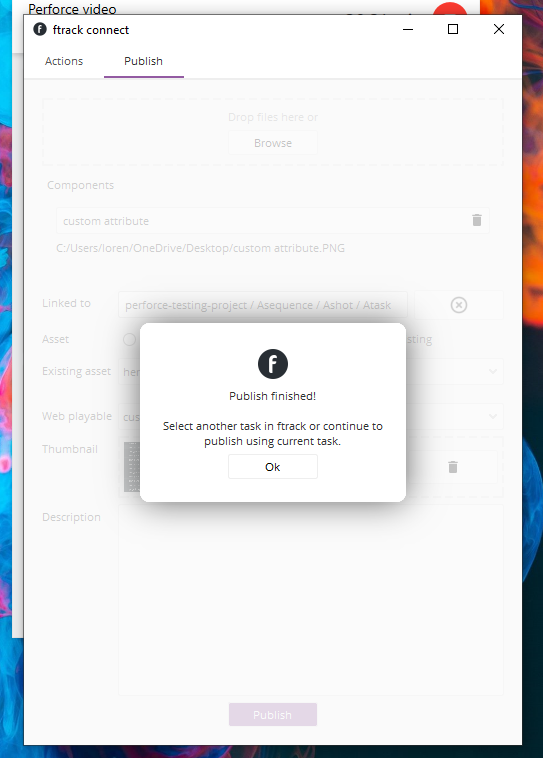
This will result in ftrack Connect reporting a successful publish:
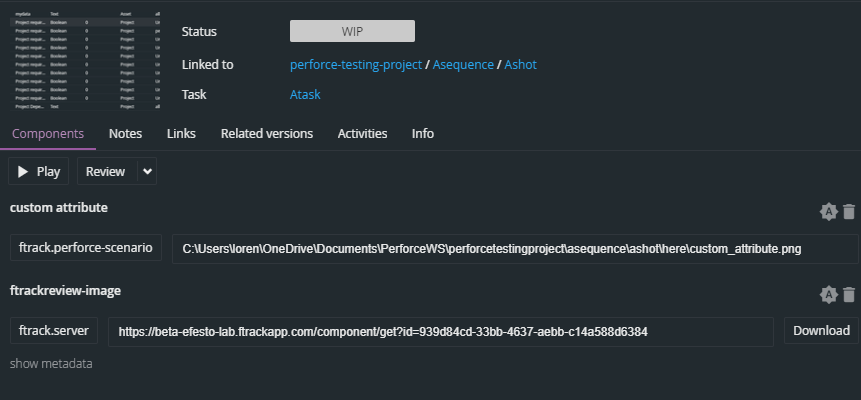
The component will be added to the server’s ftrack.perforce-scenario location.
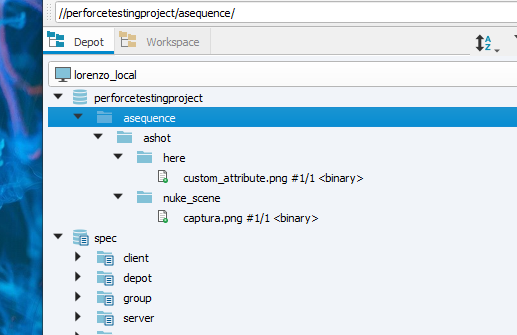
Running p4v should show the files in the depot.